ChatGPT is good at drafting posts. Getting one out the door usually means copying it into a scheduler, downloading and re-uploading the image, and picking a time.
Connect ChatGPT to Orbitwrite's MCP server and it does that last part from the same chat. It sees the channels your workspace has connected, reads your posting schedule and brand voice, attaches images, and puts posts on your calendar, where your team sees them next to everything else you've planned.
The example here is a small one. A bakery called Crumb & Co is launching an autumn loaf, and the announcement goes out tomorrow on Instagram in the morning and LinkedIn at lunchtime. Every prompt below has a Copy button, and the ones that start a conversation open straight in ChatGPT.
What you need
- An Orbitwrite workspace with at least two connected channels. The example uses Instagram and LinkedIn.
- An Orbitwrite API key. You'll make one in the next step.
- The ChatGPT app.
MCP (Model Context Protocol) is the standard way for an AI assistant to call tools in another app. Orbitwrite's server lives at https://mcp.orbitwrite.com, and it's the same one Claude, Cursor and VS Code connect to.
Connect ChatGPT to Orbitwrite
Start in Orbitwrite. Open Settings, then MCP, and create a key. Pick ChatGPT from the list of clients and Orbitwrite shows the settings below with your key filled in. Copy the key before you leave the page, because Orbitwrite only shows it once.
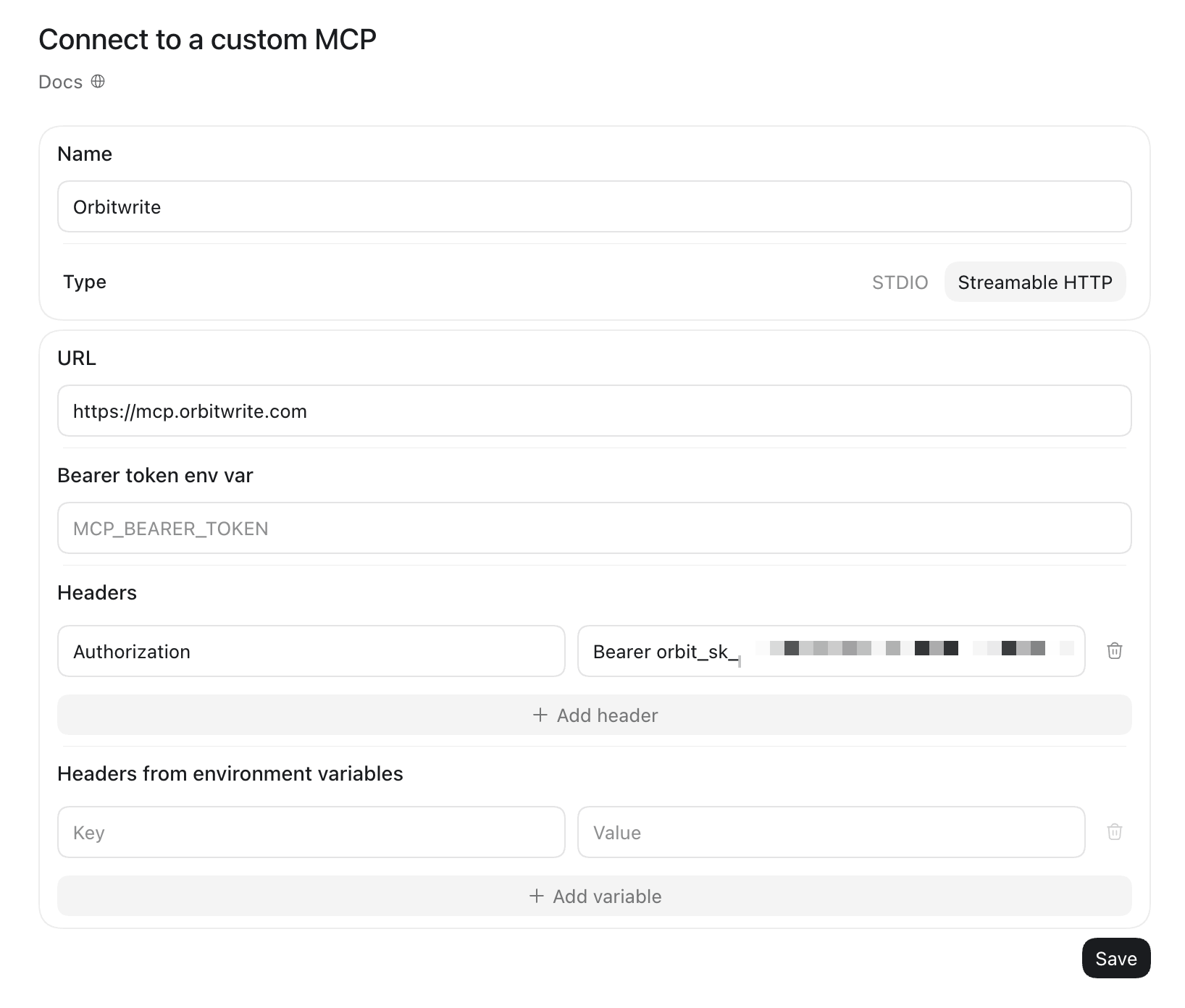
Then, in the ChatGPT app, add a custom MCP server and fill in the form:
- Name:
Orbitwrite - Type: Streamable HTTP
- URL:
https://mcp.orbitwrite.com - Headers: add one with the key
Authorizationand the valueBearerfollowed by a space and your key
Authorization: Bearer orbit_sk_...
Leave the other fields empty and save.
Anyone holding that key can act in your workspace, so keep it somewhere private. To limit what ChatGPT can touch, create the key under Settings, API keys and choose its permissions. That page is also where you revoke it when you want to cut ChatGPT off.
Start a new chat and check the connection:
Which Orbitwrite workspace am I in, and which channels are connected?
ChatGPT calls whoami and list_channels, then lists every channel the workspace has connected. Mine came back with nine:
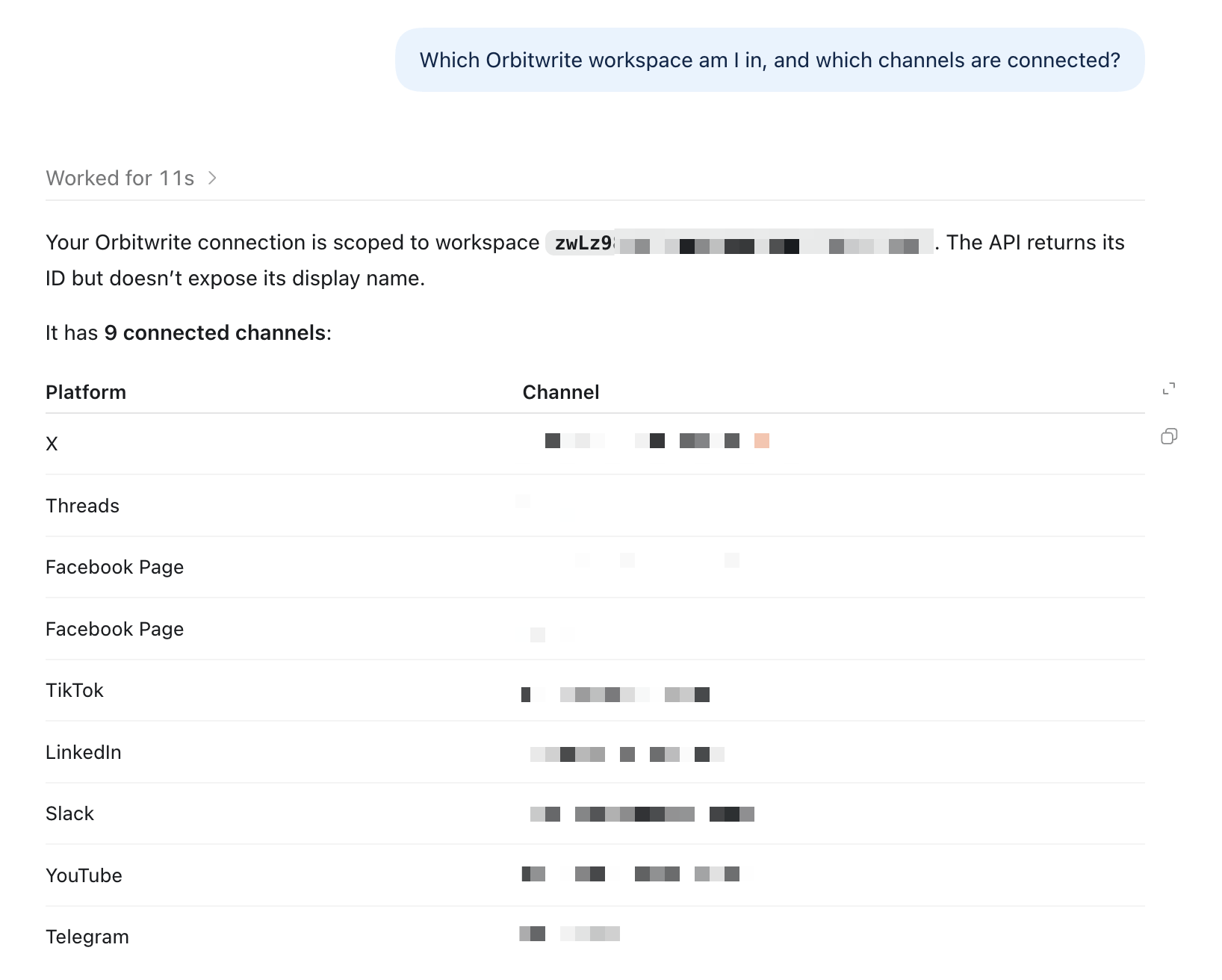
That list is what ChatGPT picks from when you say "LinkedIn" or "our Facebook Page".
Write the post
If your workspace has a brand voice set up in Orbitwrite, start there. ChatGPT reads it with read_brand_voice, so the draft follows the tone and rules your team has already written down.
Read our brand voice in Orbitwrite, then write the announcement for our new pumpkin and brown butter loaf. It's £6 and we're only baking it on Saturdays until the end of October. I want a short Instagram caption and a slightly longer LinkedIn post. No hashtags.
Here's the kind of thing you get back for Instagram:
Pumpkin and brown butter loaf, out tomorrow. Soft crumb, toasted pecans on top, and the whole shop smells like October while it bakes. £6 a loaf, Saturdays only until the end of the month.
From here it's a normal chat. Ask for a shorter caption, a different first line, or a LinkedIn version that talks more about the bakers. Orbitwrite comes in when you ask ChatGPT to attach, save or schedule something.
Make the image
Instagram posts carry an image or video, so this one gets a picture.
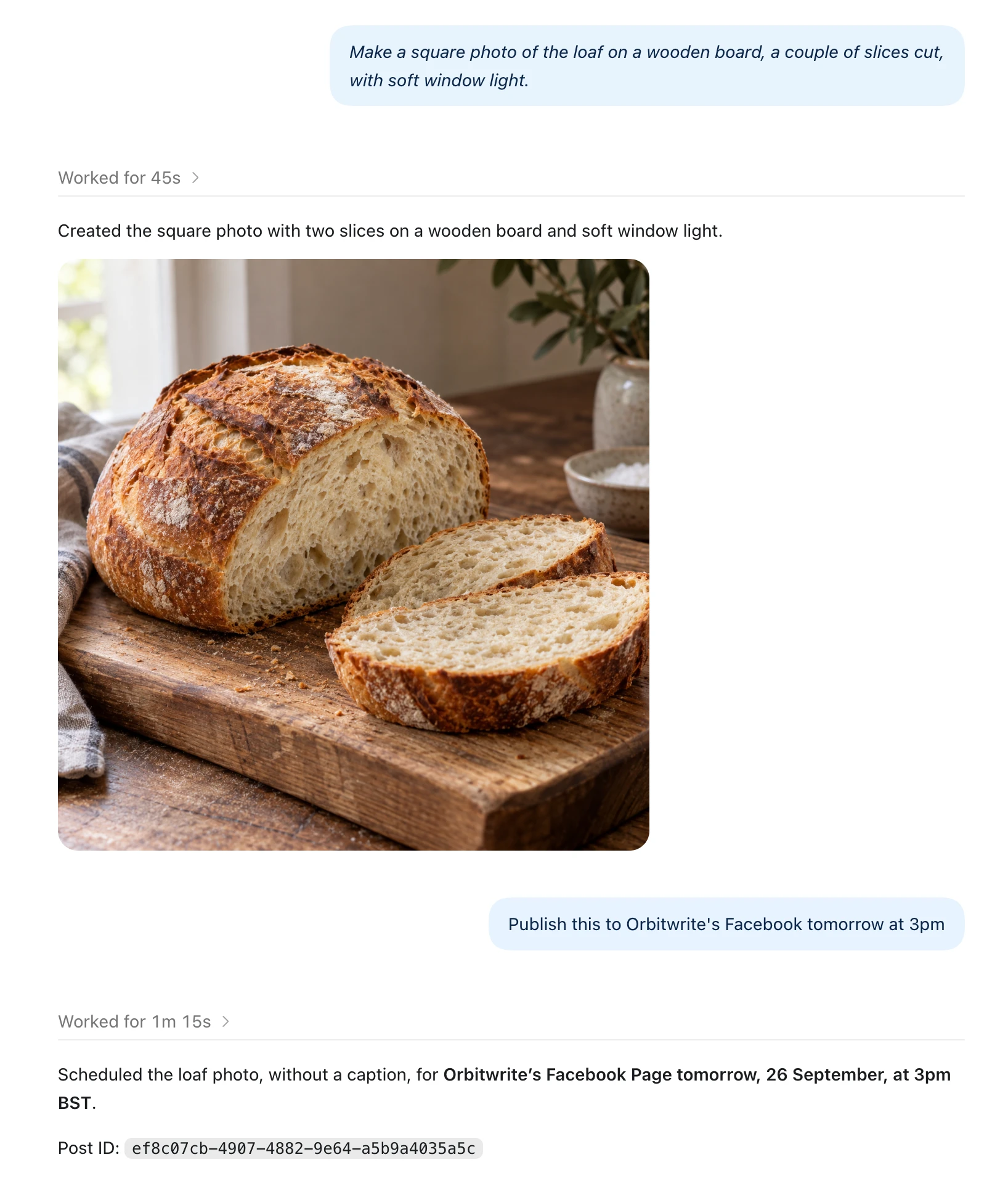
Make a square photo of the loaf on a wooden board, a couple of slices cut, with soft window light.
Here's that prompt in my own test chat. I skipped the caption there and sent the photo on its own to a Facebook Page, and ChatGPT uploaded it and scheduled it for 3pm the next day:
Back in the bakery chat, once you're happy with the picture:
Attach that image to both posts.
The upload goes to your workspace's media library through upload_media, and ChatGPT keeps the id to attach when it creates the posts. The image shows up under Media in Orbitwrite, so you can reuse it later.
Schedule it for tomorrow
Schedule both in Orbitwrite for tomorrow. Instagram at 8am, LinkedIn at 12:30pm.
ChatGPT sends both channels in one create_post call, each with its own time. Each channel also has its own copy, so Orbitwrite files them as two separate posts on the calendar, one at 8:00 and one at 12:30, both carrying the loaf photo.
Times need a timezone. In my test, ChatGPT read "3pm" as BST, which is the workspace's zone. If your team works across zones, name the one you mean.
Open the calendar in Orbitwrite and both posts are there for tomorrow. They're ordinary posts, so you can open one in the composer and change a word, swap the image or move it by dragging.
More things to ask
Once Orbitwrite is connected, most scheduling jobs are one sentence. A few that work well:
- "Put this in the next free slot on each channel." ChatGPT asks
suggest_post_timesfor the slots in your posting schedule that are still free. - "Post this on LinkedIn and Bluesky tomorrow, an hour apart, starting at 9am."
- "Queue these five posts after everything already scheduled, one a day."
- "Save it as a draft. I'll finish it in Orbitwrite."
- "What's going out tomorrow?"
- "Move the LinkedIn post to Thursday at 10am."
- "Send the Instagram post to Sam for approval before it goes out."
Each of these ends up as a post in Orbitwrite, where your team sees it, reviews it and publishes it the same way as everything else on the calendar.
Use Orbitwrite from other agents
The same MCP server works in Claude, Cursor, VS Code, Codex and any other client that can send a header. Settings, MCP has a ready-made snippet for each of them.
Coding agents can also install the Orbitwrite agent skill. A skill is a set of instructions an agent loads when a task calls for it, and this one explains how a workspace fits together: channels, posts that go to several networks at once, the media upload steps, approvals and the inbox. It also carries references for every tool, API route and platform limit, so the agent can look up Instagram's caption length when it needs it.
npx skills add orbitwrite/skills
That covers Codex, Copilot, OpenCode, Windsurf and other agents that read skills. In Claude Code, the plugin installs the skill and connects the MCP server in one go, reading your key from the ORBITWRITE_API_KEY environment variable:
/plugin marketplace add orbitwrite/skills
/plugin install orbitwrite@orbitwrite
The skill's source is on GitHub at orbitwrite/skills.
To try all this, create a key under Settings, MCP, add https://mcp.orbitwrite.com to ChatGPT with the Authorization header, and ask it which channels you've got.