Your schedule now lives wherever you already check your week.
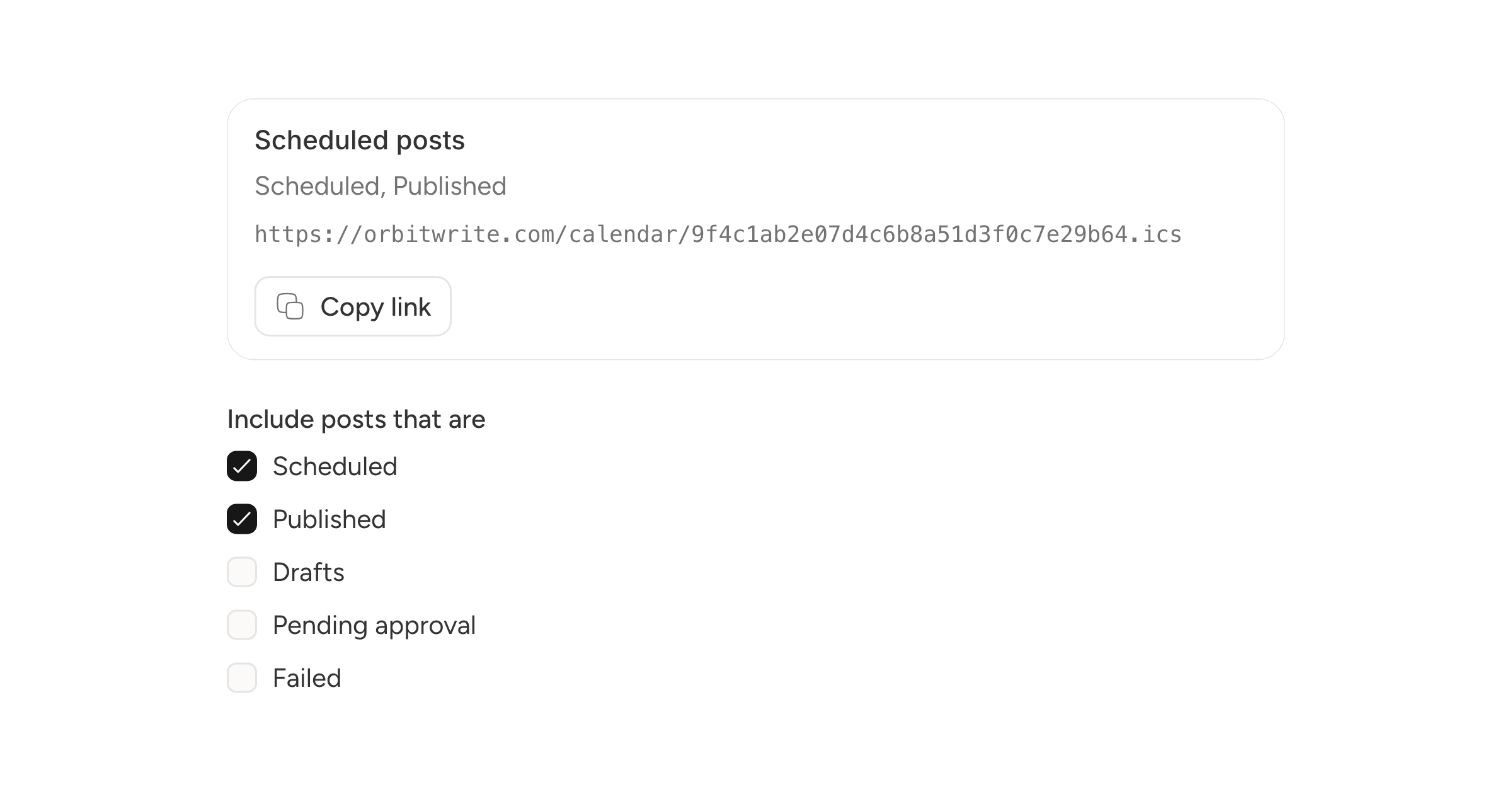
Go to Settings, Calendar feeds, and create a feed. Name it, tick the statuses you want to see, and you get a subscribe link. There is a one-click button for Google Calendar, and the link works in Apple Calendar, Outlook, or anything that takes a calendar URL.
Choosing what shows up
Each feed can include any mix of scheduled, published, draft, pending approval, and failed posts. Scheduled and published are on by default.
Make as many feeds as you like. One with everything for you, one with just what is scheduled for a client, and so on.
Good to know
Feeds belong to you, not the workspace. Owners can see that other members have feeds and revoke them, but never see the URLs. Revoking is instant and cannot be undone, so anyone using that link will need a new one.
How often the feed updates is up to your calendar app. Google and Apple both refresh on their own schedule.