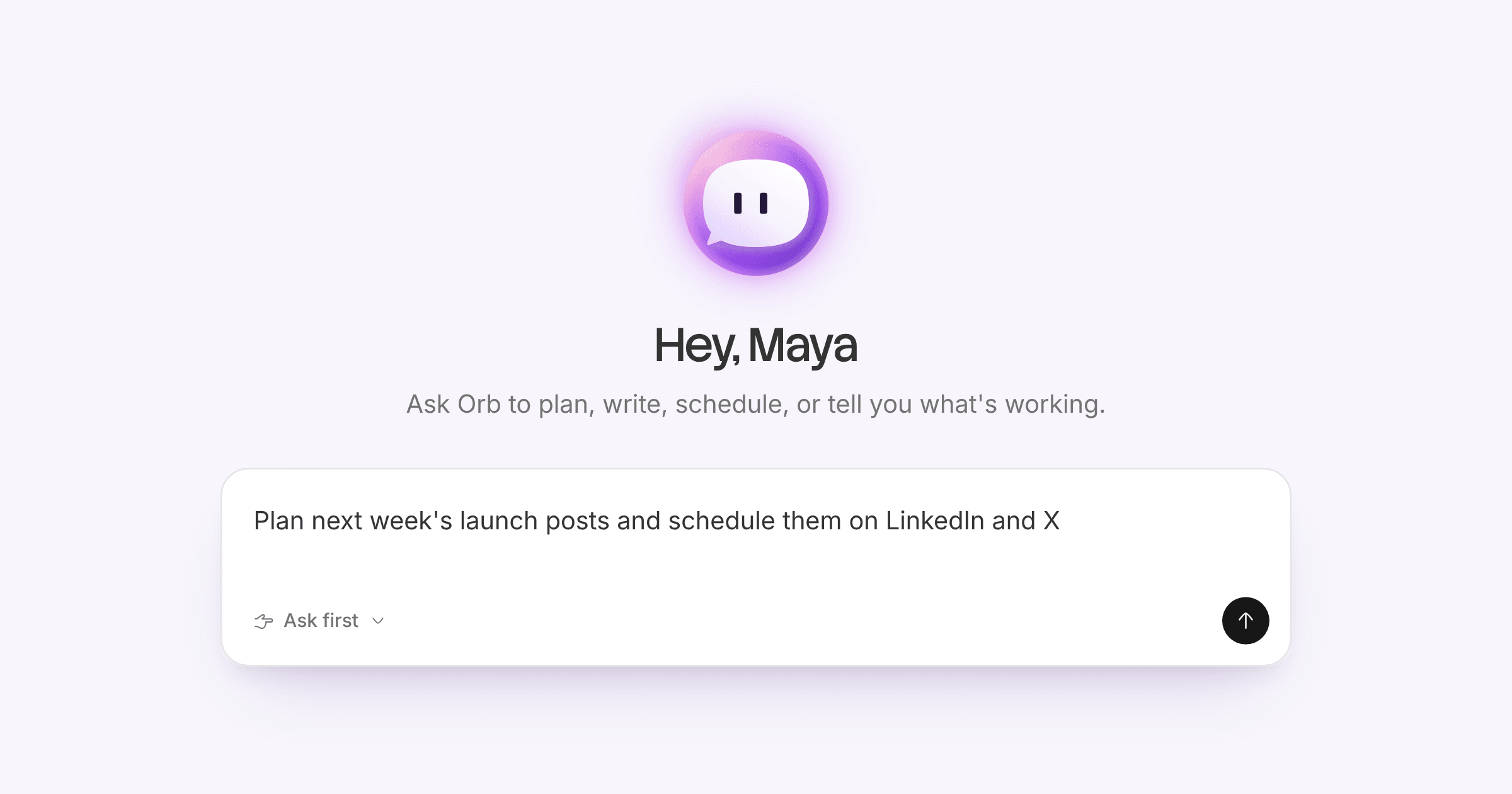
Meet Orb, the assistant on every page of Orbitwrite. It acts on what you ask, so type "schedule this for Thursday morning on LinkedIn and X" or "plan a month of posts for the launch" and it does the work with the same tools the rest of Orbitwrite uses.
Outside a post, Orb can list, search, create, schedule and unschedule posts, suggest times, plan campaigns, show how posts did over a period, and take you to the right page. Inside the composer it works on the open post: writing or replacing the text, a version per channel, the title, tags and campaign, media and GIFs, the format, and auto-engagement.
You decide what it changes
The message box has two modes. Ask first holds every change until you allow it. Auto lets Orb draft, schedule and edit on its own. Publishing, deleting, approval decisions and inbox replies always ask, whichever mode you're in.
Smaller things that add up
- When Orb needs a detail, such as who should review or which channel, it asks one question at a time with choices you can pick from, in the spot where the message box sits.
- Type
@to mention a teammate. - Every post Orb writes uses the same card, with Refine, Insert, Apply and Create.
- Conversations are kept. The title in the header switches between earlier chats, and clicking Orb starts a new one.
- Opened outside a post, Orb starts with what needs you: failed posts, posts waiting for approval, unanswered conversations, and empty days this week.
- The composer's Ideas, Info, Preview and Comments panels now open full height at the right edge, the same as Orb.
Press ⌘J to open Orb from anywhere.